Outlook 2010 signature button not working (64-bit)

I recently removed Office 2010 (32-bit) and installed the 64-bit version. This introduced the problem where my signatures in Outlook were no longer being added to emails.

I fully understand the process of creating signatures, how they work, where they are saved etc so off I went to File > Options > Mail > Signatures

My issue was that the “signature” button, when pressed, wouldn’t open the window with all the options for creating and editing signatures. Clicking it just did nothing!

After a bit of searching I found the following solution…

Use “regedit” to change the “(Default)” and “LocalServer32” values in each of the keys below to C:\Program Files\Microsoft Office\Office14\Outlook.exe

HKEY_LOCAL_MACHINE\SOFTWARE\Classes\Wow6432Node\CLSID\{0006F03A-0000-0000-C000-000000000046}\LocalServer32

-and-

HKEY_LOCAL_MACHINE\SOFTWARE\Classes\CLSID\{0006F03A-0000-0000-C000-000000000046}\LocalServer32

Once the keys have been changed, launch outlook and the signature button will work again allowing you to change your signature preferences.

Note: The above fix will also work for the 32-bit version of Outlook, just change the C:\Program Files\Microsoft Office\Office14\Outlook.exe to C:\Program Files (x86)\Microsoft Office\Office14\Outlook.exe

outlook-regedit

Bitlocker “Preparing Automatic Repair” at Startup Windows 8.1

We recently bought an Asus S400C notebook for a client that needed to be configured with Windows 8.1 and secured with Bitlocker. After upgrading from Windows 8 to 8.1 we ran in to the following problem…

PROBLEM: After enabling Bitlocker and booting with the encryption key on a USB key we can’t get into windows. It sticks at the boot screen saying “Preparing Automatic Repair”. If you remove the USB stick it goes straight to the bitlocker screen giving you the option to enter the recovery code or reboot.

SOLUTION: Go into the BIOS and disable the “FAST BOOT” option.


Create bootable USB drives from ISO’s

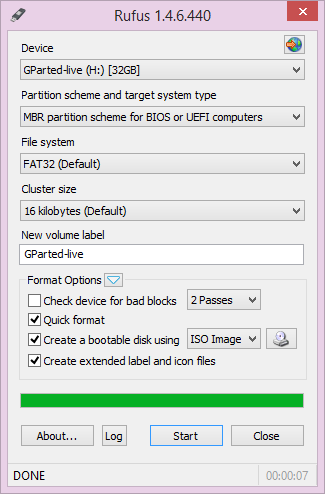
Create bootable USB drivesA while back I was looking for an easy way to create a bootable USB stick version of a Windows 7 disc that I had to install on a number of workstations that didn’t have CD-ROM drives. I found the following utility that can create USB installation media from bootable ISO’s.

RUFUS  http://rufus.akeo.ie

“Rufus is an utility that helps format and create bootable USB flash drives, such as USB keys/pendrives, memory sticks, etc. It can be especially useful for cases where:

  • you need to create USB installation media from bootable ISOs (Windows, Linux, UEFI, etc.)
  • you need to work on a system that doesn’t have an OS installed
  • you need to flash a BIOS or other firmware from DOS
  • you want to run a low-level utility

Despite its small size, Rufus provides everything you need!”

Google redirects to a fake flash player update on both pc and mobile.

Trying to get on google but keep getting a page saying flash needs updating which in turn tries to get you to download a virus / malware? Do you have a TP-Link modem / router? Chances are your router has been hacked!

A customer of ours had this problem the other day, tried to get to google and kept getting this message in the browser to update flash pro. They  ignored the antivirus software’s warning and went ahead and downloaded the so called update. PC now infected! Many hours later after a clean install (just to make sure) we gave the customer their PC back.

When they returned home, plugged in, turned on, same message again when trying google! Didn’t matter which browser they used, always the same. All other sites worked fine apart from google. I got them to try on their other pc and smartphone, same thing. So this made me think it must be some kind of routing issue with the router. Turns out that their TP-Link router is pretty easy to hack and had been.

Here’s a link to a video on how to hack the router in question http://www.youtube.com/watch?v=wy4n8a3dy0Q

In short their routers DNS was changed from  8.8.8.8 to 50.63.128.135 This meant that when they try to get google the request was going to a dodgy server dishing out this fake flash player.

As yet I don’t think there is a firmware fix for this and a number of TP-Link routers may be affected. However you can protect yourself by blocking any external access to the router by enabling SPI which can be found under the Advanced Setup > Firewall section.

After more digging I found a few more people who have had this issue… http://www.bleepingcomputer.com/forums/t/526812/help-google-redirects-to-a-fake-flash-player-update-on-both-pc-and-mobile/page-3

Malicious DNS

The Malicious DNS

Enable SPI to secure

Enable SPI to secure

MSSQL Maintenance cleanup task does not delete older files

If you are running Microsoft SQL Server 2008 R2 and find that your maintenance cleanup task is not deleting old files then it’s likely to be one of the following…

  1. Make sure you have the correct path specified and that it does not have a “\” on the end
  2. Make sure the file extension does not have a dot before it e.g.  “.bak” It should just read “bak”. You could also try *.* that would delete all files regardless of their file extension.

sqltask


iPhone 5 and MTP USB device failed to install Windows 7

Had problems the other day installing a new iPhone 5 for a customer on a Toshiba Satellite Pro running Windows 7 64bit.  The phone worked fine in iTunes but it could not been seen as a removable drive under “Computer”.

Did all the usual stuff like unplugging all other devices, reboots, uninstall in device manger etc. Nothing worked then I came accross the following article that worked!

  1. Run the registry editor (type in “regedit” in the command-line”)
  2. Backup your current registry (File > Export)
  3. Navigate the following path: HKEY_LOCAL_MACHINE / SYSTEM / CurrentControlSet / Control / Class
  4. On the left side, search for the entry {EEC5AD98-8080-425F-922A-DABF3DE3F69A} and click on it
  5. On the right side, you will find a key which begins with “Upper…” – delete it!
  6. Now unplug your iPhone
  7. Restart your computer
  8. Plug in your iPhone and hopefully find it mounted as a drive again!

BOOM!!

iPhone 4 Crackling During Calls on Vodafone

Over the past month or so I’ve had problems with my iPhone 4 crackling and the mic stop working when making or receiving calls. It started off doing it maybe once or twice a week but eventually got to a stage where it was nearly every call. I’d take or receive a call and anywhere between 0 – 60 seconds it would start crackling in the ear piece, get progressively louder then the person on the other end of the line couldn’t hear me at all and hang up! Continue reading →